Install & first launch
ArchStage is a native desktop app. You download it once and keep it — no browser tab, no account to create. You'll also need Claude Code CLI and an Anthropic plan (Pro, Max, or API) — ArchStage drives Claude, it doesn't replace it.
Before you open it
Two one-time steps. Both are free.
-
1Install Claude Code. Follow the instructions at claude.com/claude-code. After install, run
claude loginin a terminal and complete the sign-in. ArchStage talks to your localclaudecommand — no extra keys or tokens live inside ArchStage. -
2Pick a Claude plan. Claude Pro or Max works for most users; API billing works too. You pay Anthropic directly — ArchStage never sees your credits and never marks them up. A typical build uses $2–8 of Claude credits per sprint.
First launch
Open ArchStage. You'll see the ArchStage home screen with two buttons: New Project and Open Project. If this is your very first launch, a three-step onboarding overlay runs first — it welcomes you, checks that Node.js, Claude Code CLI, and your Claude authentication are all healthy, then drops you on the home screen. Click New Project and the guided wizard opens.
Don't overthink the first project. Type a sentence about something small — a timer, a reading list, a landing page for a friend's café. You can always archive it later.
Describe — the wizard
A short conversation, not a spec. Step 1 is a single free-text prompt — "What do you want to build today?" — followed by three to five AI-generated questions tailored to your answer. Plain language, option cards, and a free-text fallback on every step. You type what you'd say out loud; ArchStage picks the stack for you.
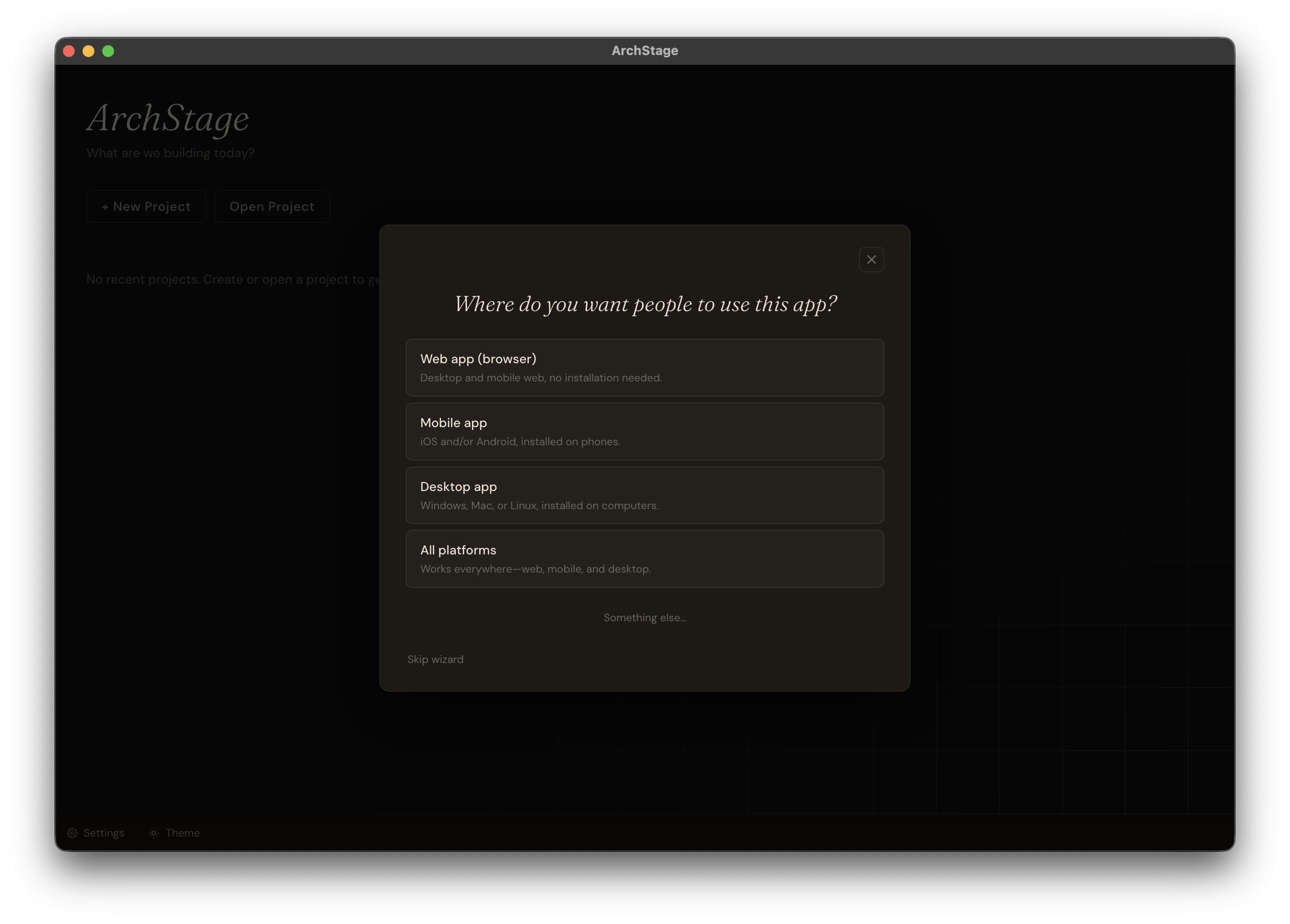
What it produces
When you finish, ArchStage silently creates a project folder on your disk and seeds it with:
- A project type and stack — chosen for you based on your answers (React + Tailwind, Kotlin + Material, vanilla HTML, etc.).
- A starter backlog — up to four "up next" features derived from what you described. Think of it as the product's first to-do list.
- A requirements list — up to ten installable tools and runtimes you'll need to actually run the result (Node, Android Studio, Python, a database, etc.). The app will offer to verify them for you.
- A first prompt — ready to submit to the Prototype view as soon as you land there.
The wizard then drops you into the Prototype view and submits that first prompt for you — you'll see the sketch appear without clicking anything.
Prefer to start empty? Click Skip (visible in the header on every step) and the classic "new project" dialog opens. You can still write your own backlog items, your own tech spec, and your own implementation plan — the guided wizard is the new front door, not a replacement.
Sketch — the prototype
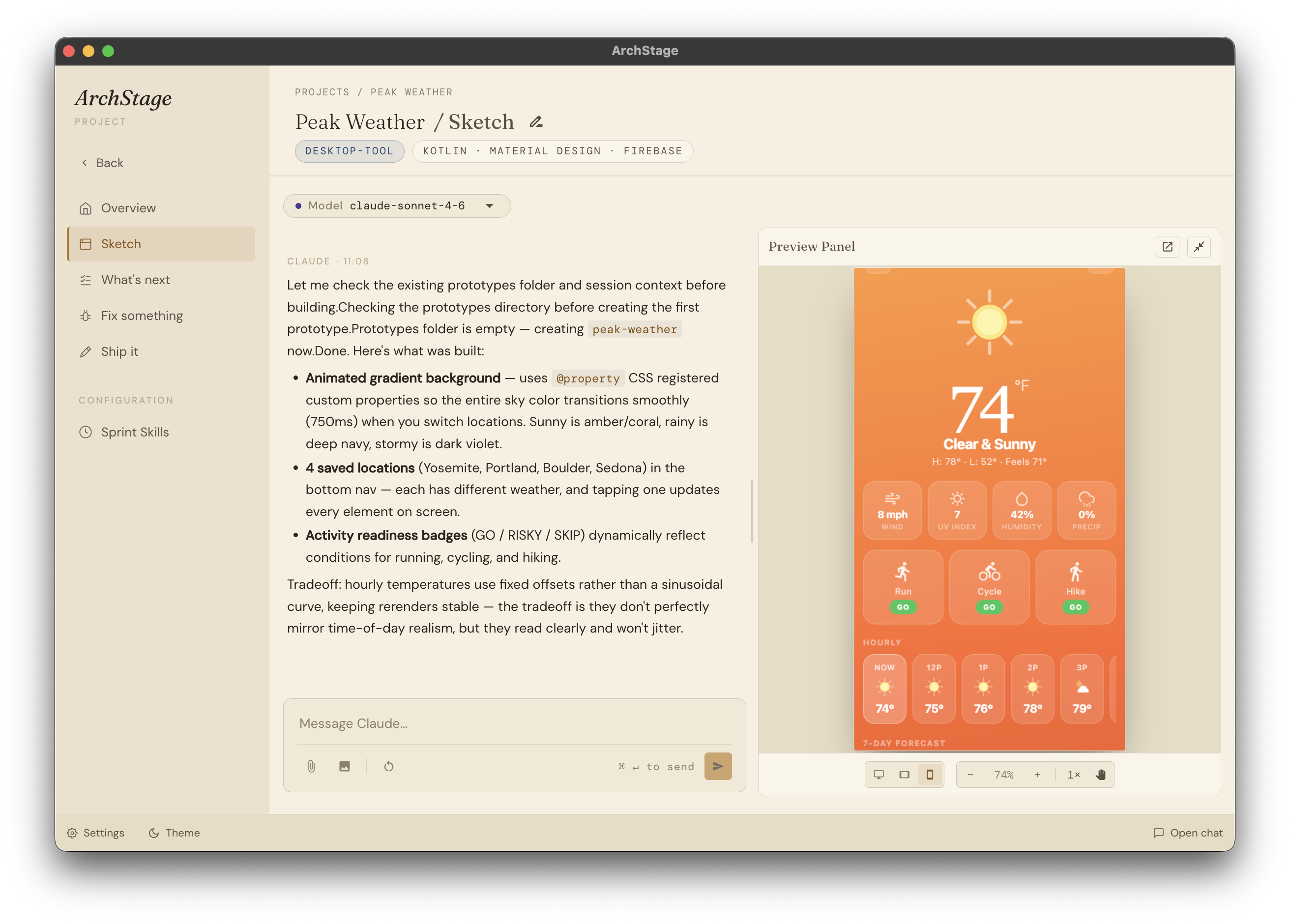
A clickable sketch appears side-by-side with your chat. Ask for changes in plain English — swap colors, rewrite copy, move things around — until it feels right. Nothing is committed to your real codebase yet.
How it works
- Three small files. Each prototype is a folder under
docs/prototypes/<slug>/with anindex.html,styles.css, andscript.js. A local static server (bound to127.0.0.1) serves it live so the preview pane shows the real page. - Three device tabs. Desktop (1440 × 900), Tablet (768 × 1024), and Mobile (375 × 667). Switch between them to check the feel before anyone writes real CSS.
- Iterate out loud. "Make the hero warmer." "Use a serif headline." "Swap the palette." ArchStage edits the files and the preview re-renders in place.
- Keep the good ones. Prototypes persist on disk and show up in the Overview Sketch card; the most recent one is what the preview pane loads.
- "Add a hero with a serif title and a single call-to-action."
- "Give me three product cards with a warm, boutique feel."
- "Use a cool winter palette — slate, mist, a touch of cobalt."
Plan — the overview
The Overview is your project plan. Not a Gantt chart, not a Jira board — a single scroll that shows what's been built, what's being built right now, and what's coming up. The backlog is the plan.
Sections in order
- Summary line — one sentence: "6 features · 2 done · 1 now · 3 up next".
- Requirements — a collapsible pill list of software you need installed (Node, Python, Android Studio…). Three states: Detect requirements (never detected), Detect again (detected but none needed), and Check requirements (populated — runs a real verification against your machine).
- Progress — one amber bar, a simple count: 2 of 6 done, plus an inline + add feature button. No velocity charts, no burn-down.
- Completed — a collapsible row; expand it to see done items with timestamps and per-item delete.
- Sketch — pinned purple-accented card. Click it to jump to the Prototype view.
- Now building — shown only when an item is
pending,running, orpaused. Amber pulsing ring, status pill. Only ever one at a time. - Up next —
newitems in order, sequentially numbered continuing after done and now. Each has a Build it button (disabled while another item is active) and a per-item delete. - Canceled — a collapsible section at the bottom. Hit Resume on any card to flip it back to
paused; the pipeline's saved state is preserved, so the build picks up where it left off.
ArchStage deliberately limits you to a single in-progress backlog item. No parallel work, no tangled branches, no "wait, which sprint is this?" — it keeps the pipeline clean and the state legible.
Build — the pipeline
Pick a backlog item, click Build, and ArchStage runs the same five stages every time: scope it, plan it, phase it, execute it, and record what was built. Consistent, auditable, and fully driven by Claude Code on your machine. The item flips to pending the moment you click Build; the pipeline panel takes over automatically as soon as the first stage starts running.
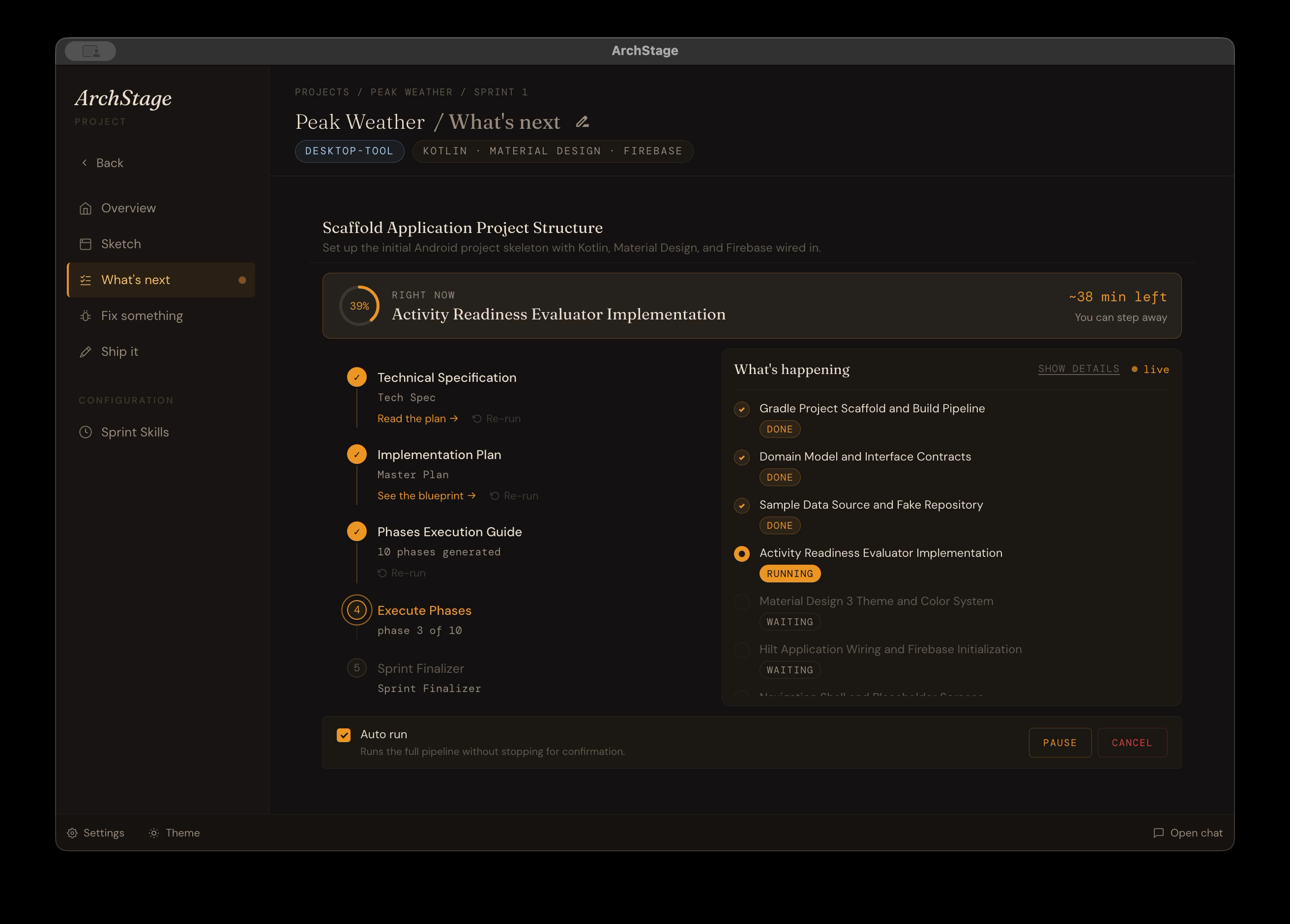
The five stages
-
1Tech spec
The
archstage-tech-specagent reads your backlog item, looks at your stack and existing code, and writes a focusedtech-spec.md. Sized for one sprint, not a whole company wiki. -
2Implementation plan
The
archstage-impl-planagent turns the spec into a sequenced, phased plan. Each phase is scoped, ordered, and independently reviewable. -
3Phase split
The
archstage-phase-splitteragent writes one prompt file per phase intodocs/sprint-N/phases/. Claude Code reads them directly — no copy-paste. -
4Execute
Each phase runs in order through Claude Code, one after the other, touching real files in your project folder. You can watch it happen in the live panel, pause between phases, or let it go end-to-end.
-
5Finalize
When the build is done, the Sprint Finalizer agent rewrites your project's
CLAUDE.mdwith what was built. The next sprint starts with full awareness of what just happened — no manual context management.
Auto-validate, pause, resume, cancel
At the bottom of the pipeline panel, four controls keep you in charge:
- Auto-validate (on by default) — the pipeline chains stages automatically. Turn it off to review each stage before the next one starts.
- Pause — stops after the current phase. You can read the output, tweak the spec, or step away. Safe to leave paused for hours.
- Resume — picks up exactly where it left off, even after you quit the app and reopen it.
- Cancel — parks the item in the Canceled section. Nothing is destroyed. You can resume from the same point later.
Everything lands in the folder you chose when the project was created — real files, real commits-ready, no "export" step. Open it in VS Code, push it to GitHub, deploy it wherever you like. ArchStage is a workflow tool, not a hosting platform.
Ship — the launchpad
Every project has a Launchpad — a set of AI-generated action cards tailored to what you built. Start a dev server. Initialize a Git repo. Zip a release. Deploy to Vercel. Generate a README. Whatever makes sense for your stack.
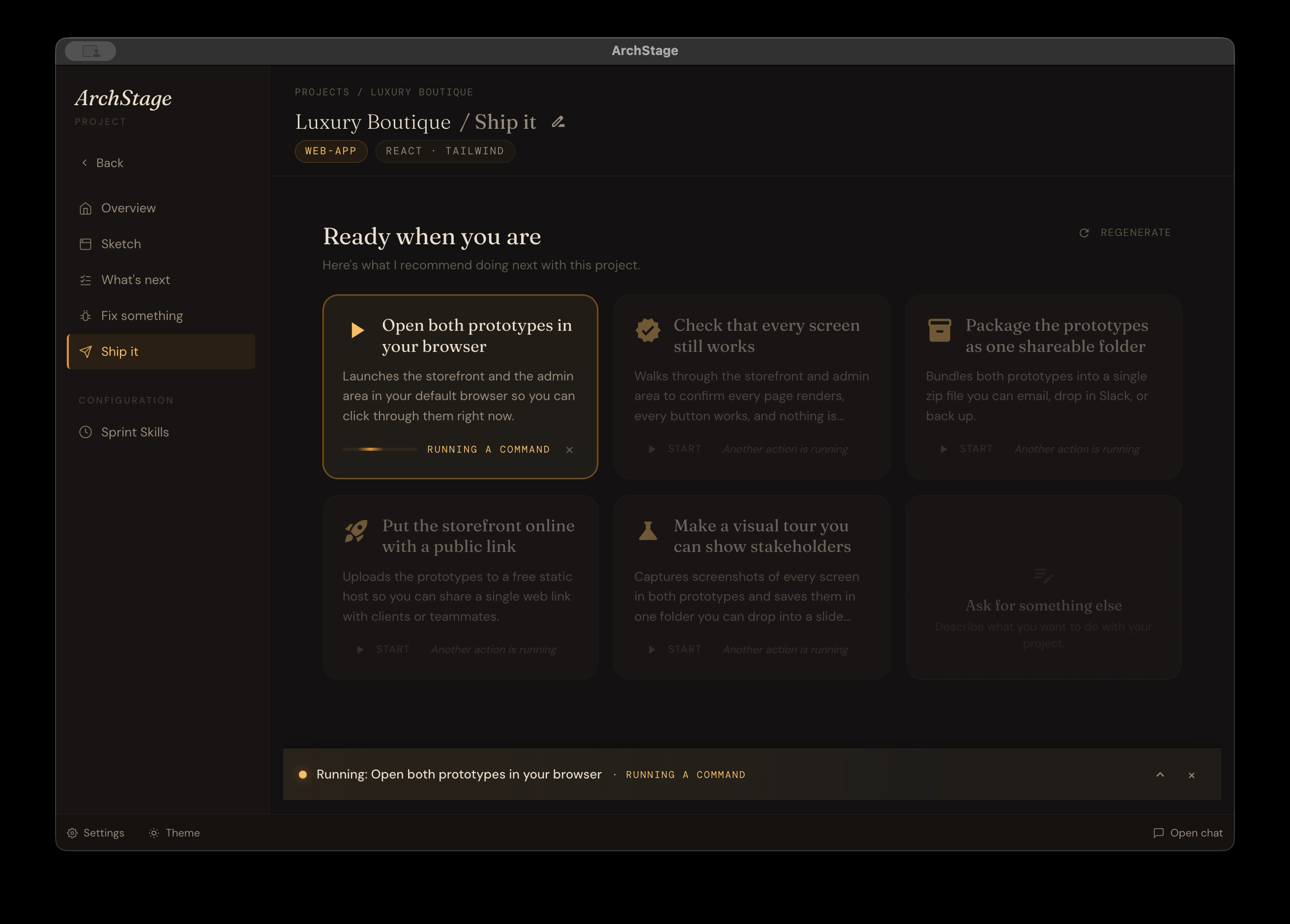
How it works
- Generated once. The first time you open the Launchpad, ArchStage reads your project and proposes up to six relevant actions (each with a title, short description, icon, and the actual prompt that will run). Click Regenerate at any time if your project evolves.
- Clicked once. Each card runs its prompt through Claude Code without stopping for permission checks, so Bash, Write, and Edit commands just run. The live log docks at the bottom of the pane while it's working and stays visible until you dismiss it.
- Free-text card. The last card is a text input. Type anything — "generate a PR description", "zip the build and reveal it in Finder", "create a systemd service file" — and ArchStage runs it on the same track.
- Start the dev server — for a web app, this is usually the first thing you want.
- Initialize a Git repo and commit — one click, versioned from the start.
- Generate a README — writes one based on what's in the codebase, not a template.
Launchpad doesn't host anything. It runs commands locally. When it says "deploy to Vercel", it runs vercel deploy on your machine with your credentials — the same as typing it yourself, just saved as a one-click card.
Shape it further
The five steps above are enough to build and ship a real product. These deep dives are for when you want more control — editing the pipeline agents, choosing per-chat models, and handling licensing.
Sprint skills
The pipeline in Build is powered by four built-in sprint skills, each one a named Claude Code agent with its own prompt template:
- Tech Spec — writes the per-backlog-item spec at the start of a build.
- Master Plan — turns the spec into a sequenced, phased implementation plan.
- Phase Prompt — splits the plan into one prompt file per phase on disk.
- Sprint Finalizer — rewrites
CLAUDE.mdafter a build so the next one starts informed.
Find them under the project sidebar's AI Behaviour entry. The four skills can't be deleted, but their system prompt, Claude model (Haiku / Sonnet / Opus), and allowed tools are all customisable per skill. Change them if you want the pipeline to reason differently in your project — e.g. bump Master Plan to Opus for a complex architecture, or swap tools for a stricter allow-list.
Per-chat model picker
The model pill in the chat header lets you pick the Claude model used for this surface. Typical setup:
- Haiku — fast Q&A, quick "explain this code" questions, cheap iterations.
- Sonnet — the default for most work. Balanced quality and cost.
- Opus — hard architecture, long debugging, tricky refactors.
Switching models on a live chat is safe — it only restarts the child process for that one surface. Your other chats keep running.
Licensing — trial, offline, recovery
- 7-day trial starts the first time you launch. No credit card.
- One-time purchase unlocks ArchStage forever on one machine. Includes all v3.x updates.
- Machine transfer — go to Settings → General → Manage License and click Deactivate. Your key is freed to activate on another machine.
- Lost key? Email support@archstage.app with the email you purchased with. We'll send it back.
Tips
- Theme toggle — click the sun/moon in the footer. Your choice persists across launches.
- Generic chat FAB — the bottom-right floating button opens a quick Claude chat scoped to your current project. Great for one-off questions without leaving your current view.
Ready to write the sentence?
Seven days, no card. Download the trial and start with something small.